
1、打开Word文档,找到视图。

2、创建宏脚本
Sub 表格格式化()On Error Resume Next   ' 忽略合并单元格等错误Application.ScreenUpdating = FalseDim tbl As Table, col As ColumnDim counter As Integer: counter = 1Dim response As VbMsgBoxResultDim title As String'' 遍历文档中所有表格For Each tbl In ActiveDocument.Tables'' --- 核心设置 ---'' 1. 表格宽度固定为14.63厘米tbl.PreferredWidthType = wdPreferredWidthPoints      ' 宽度类型tbl.PreferredWidth = CentimetersToPoints(14.63)      ' 表格宽度tbl.Rows.Alignment = wdAlignRowCenter                ' 居中显示tbl.AllowAutoFit = False'' 设置表格宽度为 100%(相对于页面宽度)' tbl.PreferredWidthType = wdPreferredWidthPercent' tbl.PreferredWidth = 100' tbl.Rows.Alignment = wdAlignRowCenter             ' 居中显示' tbl.AllowAutoFit = False' 设置表格所在段落的行距为单倍行距tbl.Range.ParagraphFormat.LineSpacingRule = wdLineSpaceSingle' 设置表格前后段落' Set para = tbl.Range.Paragraphs(1)' With para.Format'     .LineSpacingRule = wdLineSpaceSingle'    .SpaceBefore = 0'    .SpaceAfter = 0' End With' 设置表格行高和居中对齐With tbl.Rows.Height = CentimetersToPoints(1).Rows.HeightRule = wdRowHeightExactly' .Range.Cells.VerticalAlignment = wdCellAlignVerticalCenter   ' 垂直居中' .Range.ParagraphFormat.Alignment = wdAlignParagraphCenter    ' 水平居中End With'' 2. 统一边框设置With tbl.Borders.Enable = True.InsideLineStyle = wdLineStyleSingle.InsideLineWidth = wdLineWidth50pt  ' 内部细线End With'' 3. 首行格式:灰底黑体10号加粗居中Set headerRow = tbl.Rows(1)  ' 获取第一行(标题行)With headerRow.Range.Font.NameFarEast = "宋体"  ' 中文字体.Font.Size = 10.5           ' 字体大小.Font.Bold = True           ' 是否加粗显示.Font.Color = RGB(0, 0, 0)  ' 字体颜色.Shading.BackgroundPatternColor = RGB(242, 242, 242)  ' 浅灰底纹.ParagraphFormat.Alignment = wdAlignParagraphCenter   ' 水平居中.Cells.VerticalAlignment = wdCellAlignVerticalCenter  ' 垂直居中End With'' 4. 设置其他行格式If tbl.Rows.Count >= 2 ThenFor r = 2 To tbl.Rows.CountWith tbl.Rows(r).Range.Font.NameFarEast = "宋体"     ' 中文字体.Font.Color = RGB(0, 0, 0)     ' 黑色字体.Font.Size = 10.5              ' 字体大小.Shading.BackgroundPatternColor = wdColorAutomatic  ' 清除底纹.ParagraphFormat.Alignment = wdAlignParagraphCenter   ' 水平居中.Cells.VerticalAlignment = wdCellAlignVerticalCenter  ' 垂直居中End WithNext rEnd If'' --- 每10个表格提示一次 ---If counter Mod 10 = 0 Thenresponse = MsgBox("已处理第 " & counter & " 个表格" & vbNewLine & _"点击【确定】继续,【取消】中止", _vbOKCancel + vbInformation, "批量进度提示")If response = vbCancel ThenApplication.ScreenUpdating = TrueMsgBox "操作已中止!共完成 " & (counter - 1) & " 个表格", vbExclamationExit ForEnd IfEnd Ifcounter = counter + 1Next tbl'' 收尾处理Application.ScreenUpdating = TrueIf response <> vbCancel ThenMsgBox "操作完成!共处理 " & (counter - 1) & " 个表格", vbInformationEnd IfEnd Sub'' 厘米转磅函数(1厘米=28.35磅)
Function CentimetersToPoints(ByVal cm As Single) As SingleCentimetersToPoints = cm * 28.35
End Function'' 设置图片居中显示,大小调整为页面宽度
Sub 图片格式化()' 声明变量Dim shp As ShapeDim ilshp As InlineShapeDim pageWidth As SingleDim leftMargin As SingleDim rightMargin As SingleDim usableWidth As Single' 关闭屏幕更新以提高宏运行速度Application.ScreenUpdating = False' 设置错误处理,跳过无法处理的图片On Error Resume Next' 计算页面可用宽度(点数)With ActiveDocument.PageSetuppageWidth = .pageWidthleftMargin = .leftMarginrightMargin = .rightMarginEnd With' 计算可用宽度 = 页面宽度 - 左边距 - 右边距usableWidth = pageWidth - leftMargin - rightMargin' 第一部分:处理嵌入型图片For Each ilshp In ActiveDocument.InlineShapesIf ilshp.Type = wdInlineShapePicture Or ilshp.Type = wdInlineShapeLinkedPicture Then' 设置图片宽度为页面可用宽度ilshp.Width = usableWidthEnd IfNext ilshp' 第二部分:处理浮动型图片For Each shp In ActiveDocument.ShapesIf shp.Type = msoPicture Or shp.Type = msoLinkedPicture Then' 锁定纵横比,设置宽度为页面可用宽度shp.LockAspectRatio = msoTrueshp.Width = usableWidthEnd IfNext shp' 完成提示MsgBox "已完成!所有图片已设置为页面宽度。" & vbCrLf & _"页面可用宽度: " & Format(usableWidth, "0.00") & " 点", vbInformation' 重新开启屏幕更新Application.ScreenUpdating = TrueEnd Sub
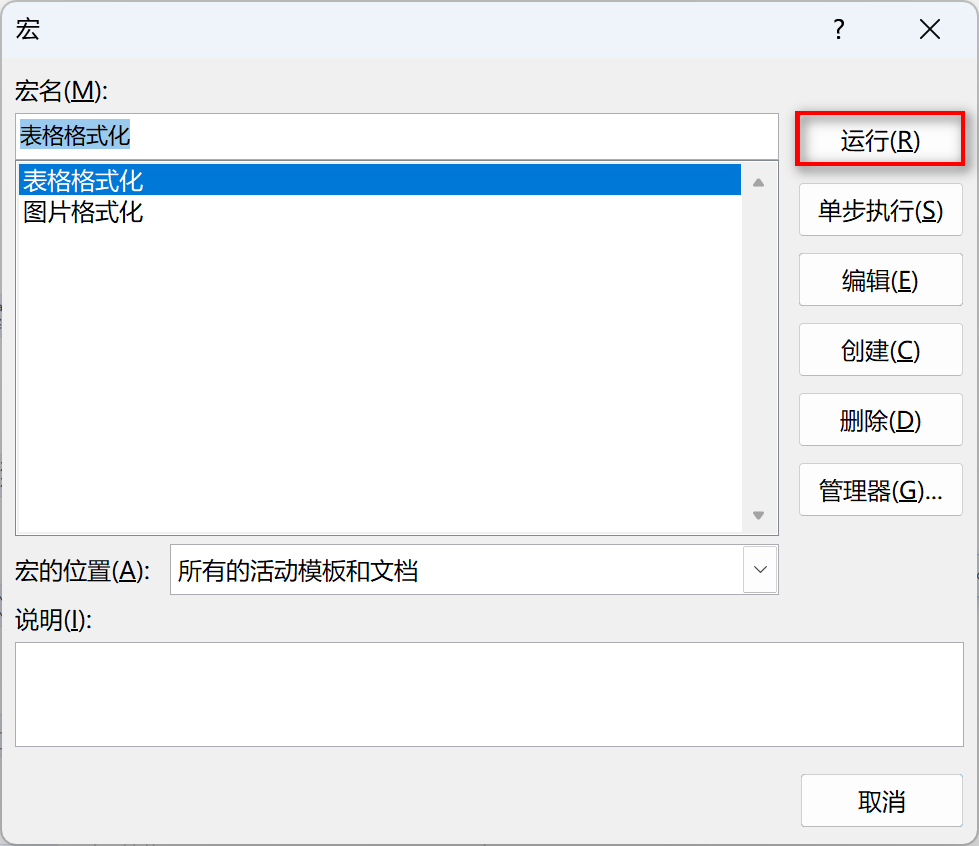
3、运行宏脚本,选中"表格格式化",点击”运行“ 按钮,即可格式化表格。
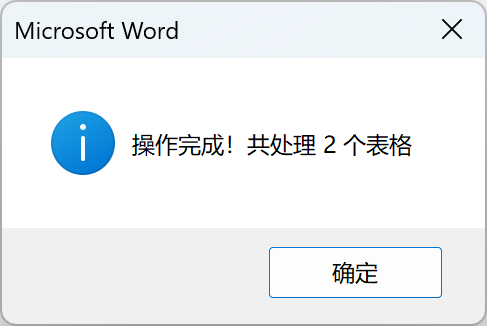
执行完成后,弹出对话框。
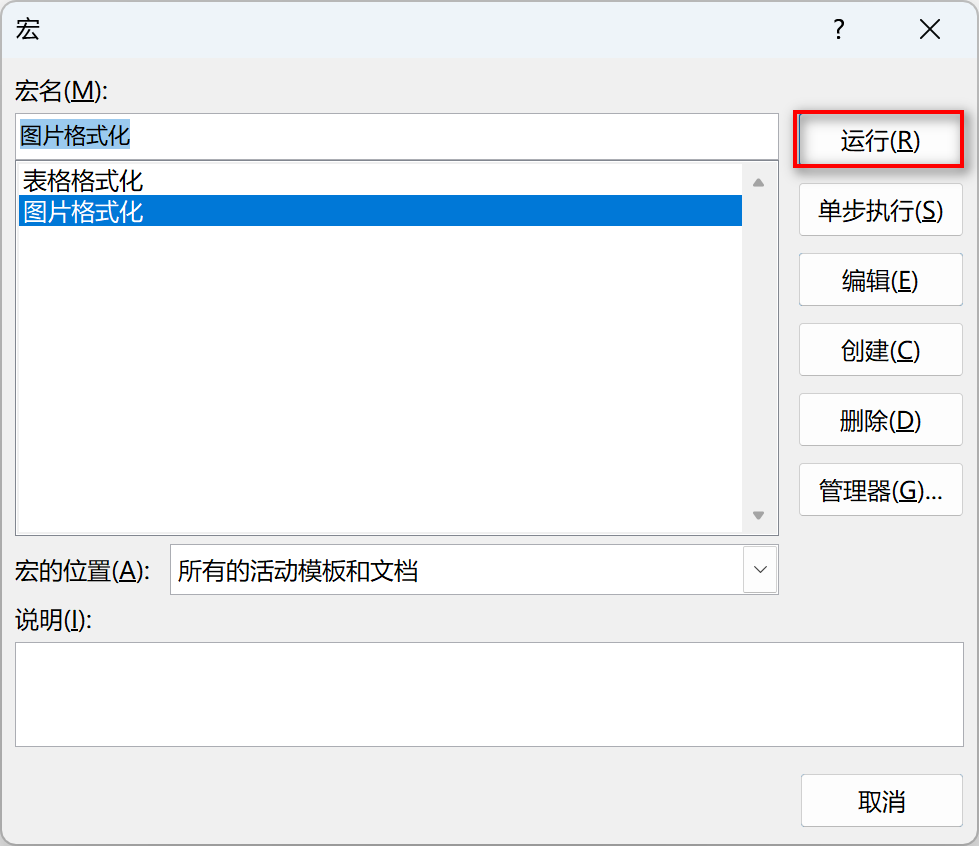
4、运行宏脚本,选中"图片格式化",点击”运行“ 按钮,即可格式化图片。
执行完成后,弹出对话框。
