

C# WPF实现ComboBox实时搜索与数据绑定
在WPF开发中,ComboBox是一个常用的下拉选择控件。但默认情况下,它并不支持实时搜索功能。本文将介绍如何通过自定义代码实现ComboBox的实时搜索和数据绑定功能。
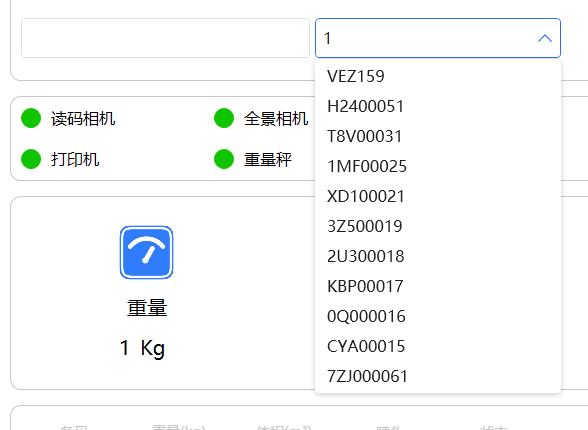
实现思路
通过使用DispatcherTimer来延迟处理用户输入,避免频繁触发搜索请求。当用户输入时,启动定时器,在指定时间间隔后执行搜索操作。
核心代码实现
1. 定时器初始化
在ComboBox的DataContextChanged事件中初始化定时器:
private DispatcherTimer _searchTimer;private void CmbShippingMark_DataContextChanged(object sender, DependencyPropertyChangedEventArgs e)
{// 初始化定时器_searchTimer = new DispatcherTimer();_searchTimer.Interval = TimeSpan.FromMilliseconds(300);_searchTimer.Tick += async (s, ev) =>{_searchTimer.Stop();await SearchShippingMarks();};
}
2. 处理用户输入
通过PreviewTextInput和PreviewKeyDown事件捕获用户输入:
private void CmbShippingMark_PreviewTextInput(object sender, TextCompositionEventArgs e)
{lastStr = CmbShippingMark.Text + e.Text;// 用户输入文本时触发_searchTimer.Stop();_searchTimer.Start();
}private void CmbShippingMark_PreviewKeyDown(object sender, KeyEventArgs e)
{try{// 处理删除、退格等按键if (e.Key == Key.Back || e.Key == Key.Delete || e.Key == Key.Space){if (CmbShippingMark.Text == null) return;lastStr = CmbShippingMark.Text.Substring(0, CmbShippingMark.Text.Length - 1);_searchTimer.Stop();_searchTimer.Start();}}catch (Exception ex) { }
}
3. 回车键处理
当用户按下回车键时,直接执行匹配操作:
private async void CmbShippingMark_KeyDown(object sender, KeyEventArgs e)
{if (e.Key == Key.Enter){_searchTimer.Stop();MatchOrder(CmbShippingMark.Text);CmbShippingMark.IsDropDownOpen = false;e.Handled = true; // 阻止事件继续传播}
}
4. 搜索逻辑实现
核心的搜索方法,从本地和远程获取数据:
private async Task SearchShippingMarks()
{if (string.IsNullOrWhiteSpace(lastStr)){CmbShippingMark.IsDropDownOpen = false;return;}try{var data = await HttpClientHelper.GetLikeCustomerList(lastStr);List shippingMarkList = data.Select(t => t.shipping_mark).ToList();List dataList = currentShippingMarkList.FindAll(t => t.data.IndexOf(lastStr, StringComparison.OrdinalIgnoreCase) >= 0).OrderBy(t => t.count).Select(t => t.data).ToList();shippingMarkList.AddRange(dataList);CmbShippingMark.ItemsSource = shippingMarkList;if (shippingMarkList.Any()){CmbShippingMark.IsDropDownOpen = true;}CmbShippingMark.Text = lastStr;// 恢复光标位置RestoreCursorPosition();}catch (Exception ex){Console.WriteLine($"搜索失败: {ex.Message}");}
}
5. 光标位置管理
确保搜索后光标位置正确:
// 获取ComboBox内部的TextBox并设置光标
private void RestoreCursorPosition()
{Dispatcher.BeginInvoke(new Action(() =>{var textBox = GetComboBoxTextBox(CmbShippingMark);if (textBox != null){// 确保TextBox获得焦点textBox.Focus();// 设置光标到文本末尾textBox.SelectionStart = textBox.Text.Length;textBox.SelectionLength = 0;}else{// 备用方案:直接聚焦ComboBoxCmbShippingMark.Focus();}}), System.Windows.Threading.DispatcherPriority.Input);
}// 获取ComboBox内部的TextBox
private TextBox GetComboBoxTextBox(ComboBox comboBox)
{return comboBox.Template?.FindName("PART_EditableTextBox", comboBox) as TextBox;
}
6. 选择项变化处理
当用户从下拉列表中选择项时的处理:
private void CmbShippingMark_SelectionChanged(object sender, SelectionChangedEventArgs e)
{lastStr = CmbShippingMark.Text = CmbShippingMark.SelectedItem as string;RestoreCursorPosition();
}
总结
通过上述代码实现,我们创建了一个支持实时搜索的ComboBox控件。关键点包括:
使用DispatcherTimer实现输入延迟处理
处理各种键盘事件(输入、删除、回车等)
结合本地和远程数据源进行搜索
维护良好的用户体验(光标位置、下拉列表控制)
这种实现方式可以有效提升用户在使用ComboBox时的体验,特别是在需要从大量数据中进行筛选的场景下。