

chrome-devtools-mcp的使用案例:连接一个远程运行的chrome实例
1、连接一个远程运行的chrome实例
以windwos系统为例
1.1、启动chrome实例
查看本地chrome程序的安装路径
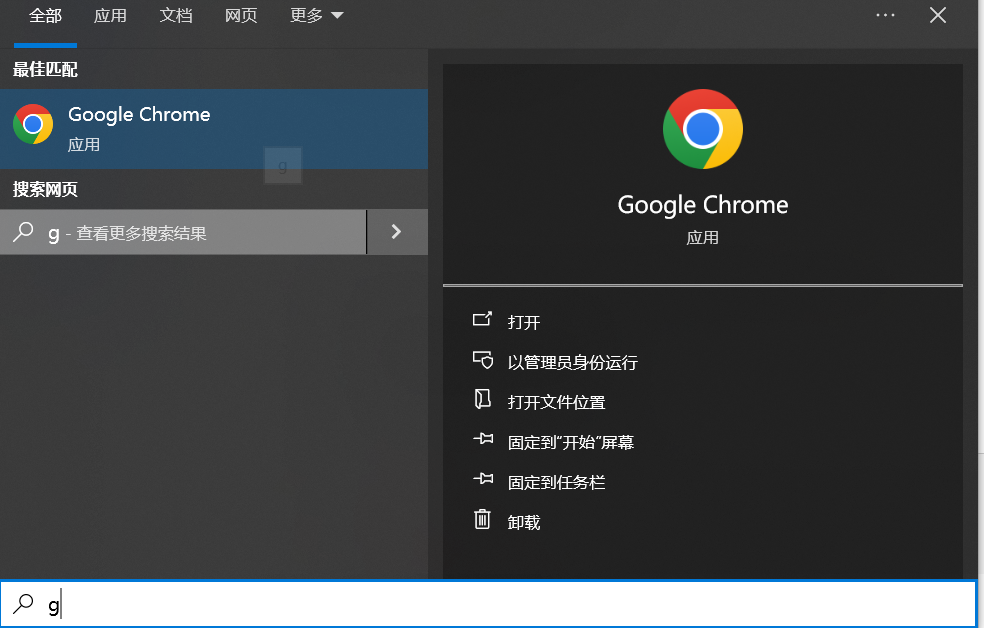
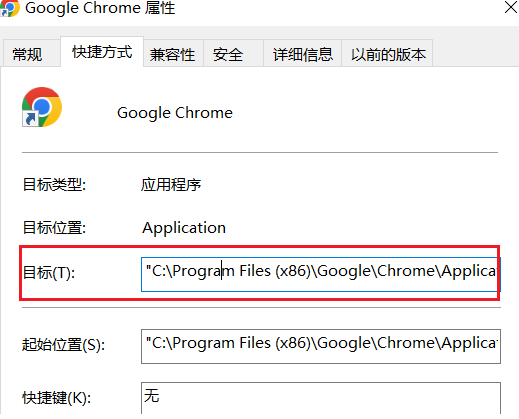
cmd运行,将会在本地以--remote-debugging-port=9222 打开chrome

1.2、案例
以spring-AI为例
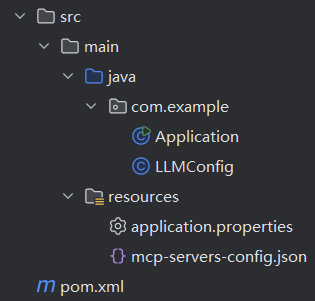
pom.xml


<?xml version="1.0" encoding="UTF-8"?>
<project xmlns="http://maven.apache.org/POM/4.0.0" xmlns:xsi="http://www.w3.org/2001/XMLSchema-instance"xsi:schemaLocation="http://maven.apache.org/POM/4.0.0 https://maven.apache.org/xsd/maven-4.0.0.xsd"><modelVersion>4.0.0</modelVersion><parent><groupId>org.springframework.boot</groupId><artifactId>spring-boot-starter-parent</artifactId><version>3.4.5</version><relativePath/></parent><groupId>com.example</groupId><artifactId>ai-mcp-fileserver</artifactId><version>0.0.1-SNAPSHOT</version><name>Spring AI - Model Context Protocol - Fileserver</name><description>Simple AI Application using MCP client to chat with FileServer</description><properties><java.version>17</java.version></properties><dependencyManagement><dependencies><dependency><groupId>org.springframework.ai</groupId><artifactId>spring-ai-bom</artifactId><version>1.1.0-SNAPSHOT</version><type>pom</type><scope>import</scope></dependency></dependencies></dependencyManagement><dependencies><dependency><groupId>org.springframework.boot</groupId><artifactId>spring-boot-starter</artifactId></dependency><dependency><groupId>org.springframework.boot</groupId><artifactId>spring-boot-starter-web</artifactId></dependency><dependency><groupId>org.springframework.ai</groupId><artifactId>spring-ai-starter-model-openai</artifactId></dependency><!-- 阿里的灵积<dependency><groupId>com.alibaba.cloud.ai</groupId><artifactId>spring-ai-alibaba-starter-dashscope</artifactId><version>1.0.0.2</version></dependency>--><dependency><groupId>org.springframework.ai</groupId><artifactId>spring-ai-starter-mcp-client</artifactId></dependency></dependencies><build><plugins><plugin><groupId>org.springframework.boot</groupId><artifactId>spring-boot-maven-plugin</artifactId></plugin></plugins></build><repositories><repository><id>spring-milestones</id><name>Spring Milestones</name><url>https://repo.spring.io/milestone</url><snapshots><enabled>false</enabled></snapshots></repository><repository><id>spring-snapshots</id><name>Spring Snapshots</name><url>https://repo.spring.io/snapshot</url><releases><enabled>false</enabled></releases></repository><repository><id>central-portal-snapshots</id><name>Central Portal Snapshots</name><url>https://central.sonatype.com/repository/maven-snapshots/</url><releases><enabled>false</enabled></releases><snapshots><enabled>true</enabled></snapshots></repository></repositories></project>
application.properties
spring.application.name=mcp
spring.main.web-application-type=NONE
server.port=8086
server.servlet.context-path=/spring.ai.chat.client.enabled=false#spring.ai.openai.base-url=https://api.deepseek.com/
#spring.ai.openai.api-key=sk-xxx
#spring.ai.openai.chat.options.model=deepseek-chat
#spring.ai.openai.chat.options.max_completion_tokens=8000
#spring.ai.openai.chat.options.temperature=0.1
spring.ai.openai.base-url=https://dashscope.aliyuncs.com/compatible-mode
spring.ai.openai.api-key=sk-xxx
spring.ai.openai.chat.options.model=qwen3-max#spring.ai.dashscope.base-url=https://dashscope.aliyuncs.com/compatible-mode/v1
#spring.ai.dashscope.api-key=sk-xxx
#spring.ai.dashscope.chat.options.model=qwen3-vl-plusspring.ai.mcp.client.toolcallback.enabled=true
spring.ai.mcp.client.stdio.servers-configuration= classpath:mcp-servers-config.jsonlogging.level.io.modelcontextprotocol.client=DEBUG
logging.level.io.modelcontextprotocol.spec=DEBUG
LLMConfig类
package com.example;import io.modelcontextprotocol.client.McpSyncClient;
import org.springframework.ai.chat.client.ChatClient;
import org.springframework.ai.chat.model.ChatModel;
import org.springframework.ai.mcp.SyncMcpToolCallbackProvider;
import org.springframework.beans.factory.annotation.Qualifier;
import org.springframework.context.annotation.Bean;
import org.springframework.context.annotation.Configuration;import java.util.List;@Configuration
public class LLMConfig {@Beanpublic ChatClient.Builder openAiChatClient(@Qualifier("openAiChatModel") ChatModel openAiChatModel,List<McpSyncClient> mcpSyncClients) {return ChatClient.builder(openAiChatModel).defaultToolCallbacks(new SyncMcpToolCallbackProvider(mcpSyncClients));}//    @Bean
//    public ChatClient.Builder dashscopeChatClient(@Qualifier("dashscopeChatModel") ChatModel openAiChatModel) {
//        return ChatClient.builder(openAiChatModel);
//    }
}
Application类
package com.example;import org.springframework.ai.chat.client.ChatClient;
import org.springframework.beans.factory.annotation.Qualifier;
import org.springframework.boot.CommandLineRunner;
import org.springframework.boot.SpringApplication;
import org.springframework.boot.autoconfigure.SpringBootApplication;
import org.springframework.context.ConfigurableApplicationContext;
import org.springframework.context.annotation.Bean;@SpringBootApplication
public class Application {public static void main(String[] args) {SpringApplication.run(Application.class, args);}@Beanpublic CommandLineRunner predefinedQuestions(@Qualifier("openAiChatClient") ChatClient.Builder chatClientBuilder,//List<McpSyncClient> mcpSyncClients,
                                                 ConfigurableApplicationContext context) {return args -> {var chatClient = chatClientBuilder//.defaultToolCallbacks(new SyncMcpToolCallbackProvider(mcpSyncClients))
                    .build();String question = "打开http://localhost:8001/index.html";System.out.println("QUESTION: " + question);System.out.println("ASSISTANT: " + chatClient.prompt(question).call().content());System.out.println("~~~~~~~~~~~~~~~~~~~~~~~~~~任务完成~~~~~~~~~~~~~~~~~~~~~~~~~~");context.close();};}}
下面的内容摘录自 https://github.com/ChromeDevTools/chrome-devtools-mcp
1、Getting started
Add the following config to your MCP client:
{"mcpServers": {"chrome-devtools": {"command": "npx","args": ["-y", "chrome-devtools-mcp@latest"]}}
}
2、Configuration
The Chrome DevTools MCP server supports the following configuration option:
--browserUrl, -u Connect to a running Chrome instance using port forwarding. For more details see: https://developer.chrome.com/docs/devtools/remote-debugging/local-server.Type: string--wsEndpoint, -w WebSocket endpoint to connect to a running Chrome instance (e.g., ws://127.0.0.1:9222/devtools/browser/). Alternative to --browserUrl.Type: string--wsHeaders Custom headers for WebSocket connection in JSON format (e.g., '{"Authorization":"Bearer token"}'). Only works with --wsEndpoint.Type: string--headless Whether to run in headless (no UI) mode.Type: booleanDefault: false--executablePath, -e Path to custom Chrome executable.Type: string--isolated If specified, creates a temporary user-data-dir that is automatically cleaned up after the browser is closed. Defaults to false.Type: boolean--userDataDir Path to the user data directory for Chrome. Default is $HOME/.cache/chrome-devtools-mcp/chrome-profile$CHANNEL_SUFFIX_IF_NON_STABLEType: string--channel Specify a different Chrome channel that should be used. The default is the stable channel version.Type: stringChoices: stable, canary, beta, dev--logFile Path to a file to write debug logs to. Set the env variable DEBUG to * to enable verbose logs. Useful for submitting bug reports.Type: string--viewport Initial viewport size for the Chrome instances started by the server. For example, 1280x720. In headless mode, max size is 3840x2160px.Type: string--proxyServer Proxy server configuration for Chrome passed as --proxy-server when launching the browser. See https://www.chromium.org/developers/design-documents/network-settings/ for details.Type: string--acceptInsecureCerts If enabled, ignores errors relative to self-signed and expired certificates. Use with caution.Type: boolean--chromeArg Additional arguments for Chrome. Only applies when Chrome is launched by chrome-devtools-mcp.Type: array--categoryEmulation Set to false to exclude tools related to emulation.Type: booleanDefault: true--categoryPerformance Set to false to exclude tools related to performance.Type: booleanDefault: true--categoryNetwork Set to false to exclude tools related to network.Type: booleanDefault: true
Pass them via the args property in the JSON configuration. For example:
{"mcpServers": {"chrome-devtools": {"command": "npx","args": ["chrome-devtools-mcp@latest","--channel=canary","--headless=true","--isolated=true"]}}
}
3、Connecting via WebSocket with custom headers
You can connect directly to a Chrome WebSocket endpoint and include custom headers (e.g., for authentication):
{"mcpServers": {"chrome-devtools": {"command": "npx","args": ["chrome-devtools-mcp@latest","--wsEndpoint=ws://127.0.0.1:9222/devtools/browser/<id>","--wsHeaders={\"Authorization\":\"Bearer YOUR_TOKEN\"}"]}}
}
To get the WebSocket endpoint from a running Chrome instance, visit http://127.0.0.1:9222/json/version and look for the webSocketDebuggerUrl field.
You can also run npx chrome-devtools-mcp@latest --help to see all available configuration options.
4、User data directory
chrome-devtools-mcp starts a Chrome's stable channel instance using the following user data directory:
Linux / macOS: $HOME/.cache/chrome-devtools-mcp/chrome-profile-$CHANNELWindows: %HOMEPATH%/.cache/chrome-devtools-mcp/chrome-profile-$CHANNEL
The user data directory is not cleared between runs and shared across all instances of chrome-devtools-mcp. Set the isolated option to true to use a temporary user data dir instead which will be cleared automatically after the browser is closed.
5、Connecting to a running Chrome instance
You can connect to a running Chrome instance by using the --browser-url option. This is useful if you want to use your existing Chrome profile or if you are running the MCP server in a sandboxed environment that does not allow starting a new Chrome instance.
Here is a step-by-step guide on how to connect to a running Chrome Stable instance:
Step 1: Configure the MCP client
Add the --browser-url option to your MCP client configuration. The value of this option should be the URL of the running Chrome instance. http://127.0.0.1:9222 is a common default.
{"mcpServers": {"chrome-devtools": {"command": "npx","args": ["chrome-devtools-mcp@latest","--browser-url=http://127.0.0.1:9222"]}}
}
Step 2: Start the Chrome browser
Start the Chrome browser with the remote debugging port enabled. Make sure to close any running Chrome instances before starting a new one with the debugging port enabled. The port number you choose must be the same as the one you specified in the --browser-url option in your MCP client configuration.
For security reasons, Chrome requires you to use a non-default user data directory when enabling the remote debugging port. You can specify a custom directory using the --user-data-dir flag. This ensures that your regular browsing profile and data are not exposed to the debugging session.
macOS
/Applications/Google\ Chrome.app/Contents/MacOS/Google\ Chrome --remote-debugging-port=9222 --user-data-dir=/tmp/chrome-profile-stable
Linux
/usr/bin/google-chrome --remote-debugging-port=9222 --user-data-dir=/tmp/chrome-profile-stable
Windows
"C:\Program Files\Google\Chrome\Application\chrome.exe" --remote-debugging-port=9222 --user-data-dir="%TEMP%\chrome-profile-stable"