深入解析:PYcharm——pyqt音乐播放器
系统概述
使用python编写一个简单的音乐播放器,假如你也无聊不妨动手试一下。
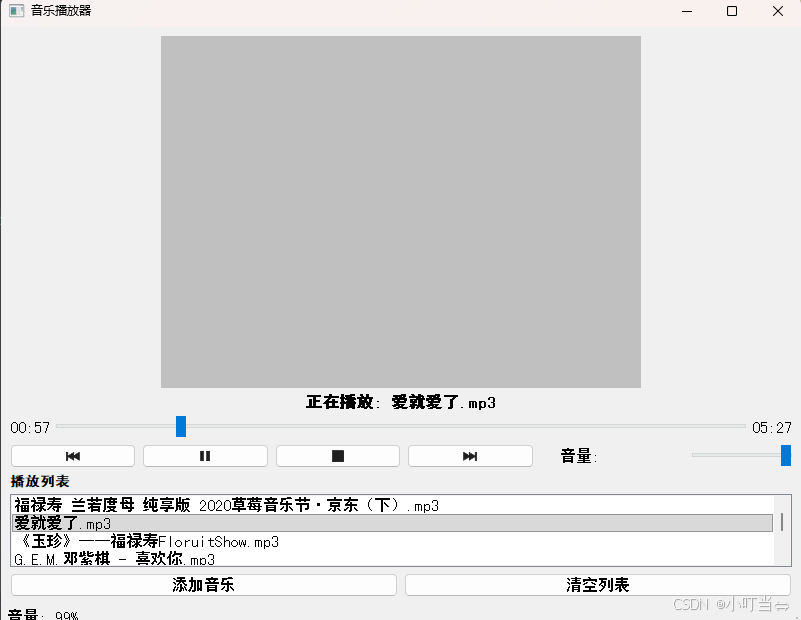
建一个基于 PyQt 的音乐播放器,实现图片中展示的功能,包括播放控制、进度条、音量调节、播放列表等核心功能。
我们将使用 PyQt5 作为 GUI 框架,结合 PyQt5 的 QMediaPlayer 组件来实现音频播放功能。
该音乐播放器构建了以下功能:
核心播放控制:播放、暂停、停止、上一首、下一首
进度条显示和控制:可以拖动进度条调整播放位置
音量调节功能
播放列表管理:添加音乐、删除音乐、清空列表
歌曲信息显示:当前播放歌曲名、播放时间
右键菜单支持:对播放列表项进行操作
使用方法:
点击 “添加音乐” 按钮选择本地音频文件(支持 mp3、wav、flac、m4a 等格式)
在播放列表中双击歌曲开始播放
使用控制按钮进行播放控制
可以拖动进度条调整播放位置
使用音量滑块调节音量大小
要在 PyCharm 中运行此程序,你需先安装 PyQt5 和 PyQt5 多媒体模块:
通过代码已经设置了中文字体支持,能够正常显示中文。界面布局简洁直观,符合图片中展示的音乐播放器基本功能需求。你可能根据需要进一步美化界面或添加更多功能,如均衡器、歌词显现等。
软件介绍
import sys
import os
from PyQt5.QtWidgets import (QApplication, QMainWindow, QPushButton, QSlider,
QLabel, QListWidget, QFileDialog, QVBoxLayout,
QHBoxLayout, QWidget, QStyle, QListWidgetItem,
QSplitter, QMenu, QAction, QMessageBox)
from PyQt5.QtCore import Qt, QUrl, QTimer, QPoint
from PyQt5.QtMultimedia import QMediaPlayer, QMediaContent
from PyQt5.QtGui import QIcon, QPixmap, QFont
class MusicPlayer
(QMainWindow):
def __init__(self):
super().__init__()
# 设置中文字体支持
font = QFont()
font.setFamily("SimHei")
self.setFont(font)
# 初始化媒体播放器
self.player = QMediaPlayer()
self.player.durationChanged.connect(self.update_duration)
self.player.positionChanged.connect(self.update_position)
self.player.stateChanged.connect(self.update_state)
# 当前播放列表索引
self.current_index = -1
self.playlist = []
# 初始化UI
self.init_ui()
def init_ui(self):
# 设置窗口标题和大小
self.setWindowTitle("音乐播放器")
self.setGeometry(300, 300, 800, 600)
# 创建中心部件
central_widget = QWidget()
self.setCentralWidget(central_widget)
# 主布局
main_layout = QVBoxLayout(central_widget)
# 专辑封面
self.album_cover = QLabel()
self.album_cover.setAlignment(Qt.AlignCenter)
self.album_cover.setMinimumHeight(300)
# 设置默认封面
default_pixmap = QPixmap(300, 300)
default_pixmap.fill(Qt.lightGray)
self.album_cover.setPixmap(default_pixmap.scaled(
self.album_cover.width(), self.album_cover.height(),
Qt.KeepAspectRatio, Qt.SmoothTransformation))
main_layout.addWidget(self.album_cover)
# 歌曲信息
self.song_info = QLabel("准备就绪")
self.song_info.setAlignment(Qt.AlignCenter)
self.song_info.setStyleSheet("font-size: 16px; font-weight: bold;")
main_layout.addWidget(self.song_info)
# 进度条
self.progress_layout = QHBoxLayout()
self.time_label = QLabel("00:00")
self.progress_layout.addWidget(self.time_label)
self.progress_bar = QSlider(Qt.Horizontal)
self.progress_bar.sliderMoved.connect(self.set_position)
self.progress_layout.addWidget(self.progress_bar)
self.total_time_label = QLabel("00:00")
self.progress_layout.addWidget(self.total_time_label)
main_layout.addLayout(self.progress_layout)
# 控制按钮
self.controls_layout = QHBoxLayout()
self.prev_button = QPushButton()
self.prev_button.setIcon(self.style().standardIcon(QStyle.SP_MediaSkipBackward))
self.prev_button.clicked.connect(self.play_previous)
self.controls_layout.addWidget(self.prev_button)
self.play_button = QPushButton()
self.play_button.setIcon(self.style().standardIcon(QStyle.SP_MediaPlay))
self.play_button.clicked.connect(self.toggle_play_pause)
self.controls_layout.addWidget(self.play_button)
self.stop_button = QPushButton()
self.stop_button.setIcon(self.style().standardIcon(QStyle.SP_MediaStop))
self.stop_button.clicked.connect(self.stop)
self.controls_layout.addWidget(self.stop_button)
self.next_button = QPushButton()
self.next_button.setIcon(self.style().standardIcon(QStyle.SP_MediaSkipForward))
self.next_button.clicked.connect(self.play_next)
self.controls_layout.addWidget(self.next_button)
self.controls_layout.addSpacing(20)
# 音量控制
self.volume_label = QLabel("音量:")
self.controls_layout.addWidget(self.volume_label)
self.volume_slider = QSlider(Qt.Horizontal)
self.volume_slider.setMaximumWidth(100)
self.volume_slider.setValue(70)
self.player.setVolume(70)
self.volume_slider.valueChanged.connect(self.set_volume)
self.controls_layout.addWidget(self.volume_slider)
main_layout.addLayout(self.controls_layout)
# 分割器
splitter = QSplitter(Qt.Vertical)
# 播放列表
self.playlist_label = QLabel("播放列表")
self.playlist_label.setStyleSheet("font-size: 14px; font-weight: bold;")
main_layout.addWidget(self.playlist_label)
self.playlist_widget = QListWidget()
self.playlist_widget.doubleClicked.connect(self.play_selected)
# 右键菜单支持
self.playlist_widget.setContextMenuPolicy(Qt.CustomContextMenu)
self.playlist_widget.customContextMenuRequested.connect(self.show_context_menu)
main_layout.addWidget(self.playlist_widget)
# 底部按钮
self.bottom_layout = QHBoxLayout()
self.add_button = QPushButton("添加音乐")
self.add_button.clicked.connect(self.add_music)
self.bottom_layout.addWidget(self.add_button)
self.clear_button = QPushButton("清空列表")
self.clear_button.clicked.connect(self.clear_playlist)
self.bottom_layout.addWidget(self.clear_button)
main_layout.addLayout(self.bottom_layout)
# 状态栏显示当前状态
self.statusBar().showMessage("就绪")
# 显示窗口
self.show()
def add_music(self):
"""添加音乐到播放列表"""
files, _ = QFileDialog.getOpenFileNames(
self, "选择音乐文件", "", "音频文件 (*.mp3 *.wav *.flac *.m4a)"
)
if files:
for file in files:
# 确保文件路径正确
file_url = QUrl.fromLocalFile(file)
# 获取文件名
file_name = os.path.basename(file)
# 添加到播放列表
self.playlist.append((file_name, file_url))
# 添加到列表控件
self.playlist_widget.addItem(file_name)
self.statusBar().showMessage(f"已添加 {
len(files)
} 首音乐")
# 如果是第一个添加的音乐,自动选中
if len(self.playlist) == len(files):
self.playlist_widget.setCurrentRow(0)
self.current_index = 0
def play_selected(self):
"""播放选中的音乐"""
selected_index = self.playlist_widget.currentRow()
if selected_index >= 0 and selected_index <
len(self.playlist):
self.current_index = selected_index
self.play_current()
def play_current(self):
"""播放当前索引的音乐"""
if 0 <= self.current_index <
len(self.playlist):
song_name, url = self.playlist[self.current_index]
self.player.setMedia(QMediaContent(url))
self.player.play()
self.song_info.setText(f"正在播放: {song_name
}")
self.statusBar().showMessage(f"正在播放: {song_name
}")
def toggle_play_pause(self):
"""切换播放/暂停状态"""
if self.player.state() == QMediaPlayer.PlayingState:
self.player.pause()
else:
if self.player.mediaStatus() == QMediaPlayer.NoMedia and len(self.playlist) >
0:
self.current_index = 0
self.play_current()
else:
self.player.play()
def stop(self):
"""停止播放"""
self.player.stop()
self.song_info.setText("已停止")
self.statusBar().showMessage("已停止")
def play_next(self):
"""播放下一首"""
if len(self.playlist) == 0:
return
self.current_index = (self.current_index + 1) % len(self.playlist)
self.playlist_widget.setCurrentRow(self.current_index)
self.play_current()
def play_previous(self):
"""播放上一首"""
if len(self.playlist) == 0:
return
self.current_index = (self.current_index - 1) % len(self.playlist)
self.playlist_widget.setCurrentRow(self.current_index)
self.play_current()
def set_volume(self, value):
"""设置音量"""
self.player.setVolume(value)
self.statusBar().showMessage(f"音量: {value
}%")
def update_duration(self, duration):
"""更新总时长显示"""
self.progress_bar.setRange(0, duration)
# 转换为分:秒格式
total_seconds = duration // 1000
minutes = total_seconds // 60
seconds = total_seconds % 60
self.total_time_label.setText(f"{minutes:02d
}:{seconds:02d
}")
def update_position(self, position):
"""更新当前播放位置"""
# 防止进度条更新时触发sliderMoved事件
self.progress_bar.blockSignals(True)
self.progress_bar.setValue(position)
self.progress_bar.blockSignals(False)
# 更新当前时间标签
current_seconds = position // 1000
minutes = current_seconds // 60
seconds = current_seconds % 60
self.time_label.setText(f"{minutes:02d
}:{seconds:02d
}")
# 如果播放结束,自动播放下一首
if position >= self.player.duration() and self.player.duration() >
0:
self.play_next()
def set_position(self, position):
"""设置播放位置"""
self.player.setPosition(position)
def update_state(self, state):
"""更新播放状态"""
if state == QMediaPlayer.PlayingState:
self.play_button.setIcon(self.style().standardIcon(QStyle.SP_MediaPause))
else:
self.play_button.setIcon(self.style().standardIcon(QStyle.SP_MediaPlay))
def clear_playlist(self):
"""清空播放列表"""
self.stop()
self.playlist.clear()
self.playlist_widget.clear()
self.current_index = -1
self.song_info.setText("播放列表已清空")
self.statusBar().showMessage("播放列表已清空")
def show_context_menu(self, position):
"""显示右键菜单"""
if not self.playlist_widget.selectedItems():
return
menu = QMenu()
remove_action = QAction("移除选中项", self)
remove_action.triggered.connect(self.remove_selected)
play_action = QAction("播放选中项", self)
play_action.triggered.connect(self.play_selected)
menu.addAction(play_action)
menu.addAction(remove_action)
menu.exec_(self.playlist_widget.mapToGlobal(position))
def remove_selected(self):
"""移除选中的项目"""
selected_items = self.playlist_widget.selectedItems()
if not selected_items:
return
# 获取选中项的索引
indexes = [self.playlist_widget.row(item) for item in selected_items]
# 按降序排序,从后往前删除
indexes.sort(reverse=True)
for index in indexes:
# 如果删除的是当前播放的歌曲
if index == self.current_index:
self.stop()
# 如果不是最后一首歌,播放下一首
if index <
len(self.playlist) - 1:
self.current_index = index
else:
self.current_index = 0 if len(self.playlist) >
1 else -1
# 从列表中删除
del self.playlist[index]
# 从控件中删除
item = self.playlist_widget.takeItem(index)
del item
# 更新当前索引(如果删除了前面的项目)
if self.current_index >
0 and self.current_index >= len(self.playlist):
self.current_index = len(self.playlist) - 1
self.statusBar().showMessage(f"已移除 {
len(selected_items)
} 首音乐")
if __name__ == "__main__":
# 确保中文显示正常
font = QFont("SimHei")
app = QApplication(sys.argv)
app.setFont(font)
player = MusicPlayer()
sys.exit(app.exec_())
示例演示